
Adding and Setting Up a New Client
Before creating projects or generating invoices, register your clients in the My Clients module to store their contact details, invoicing terms, and default currency.
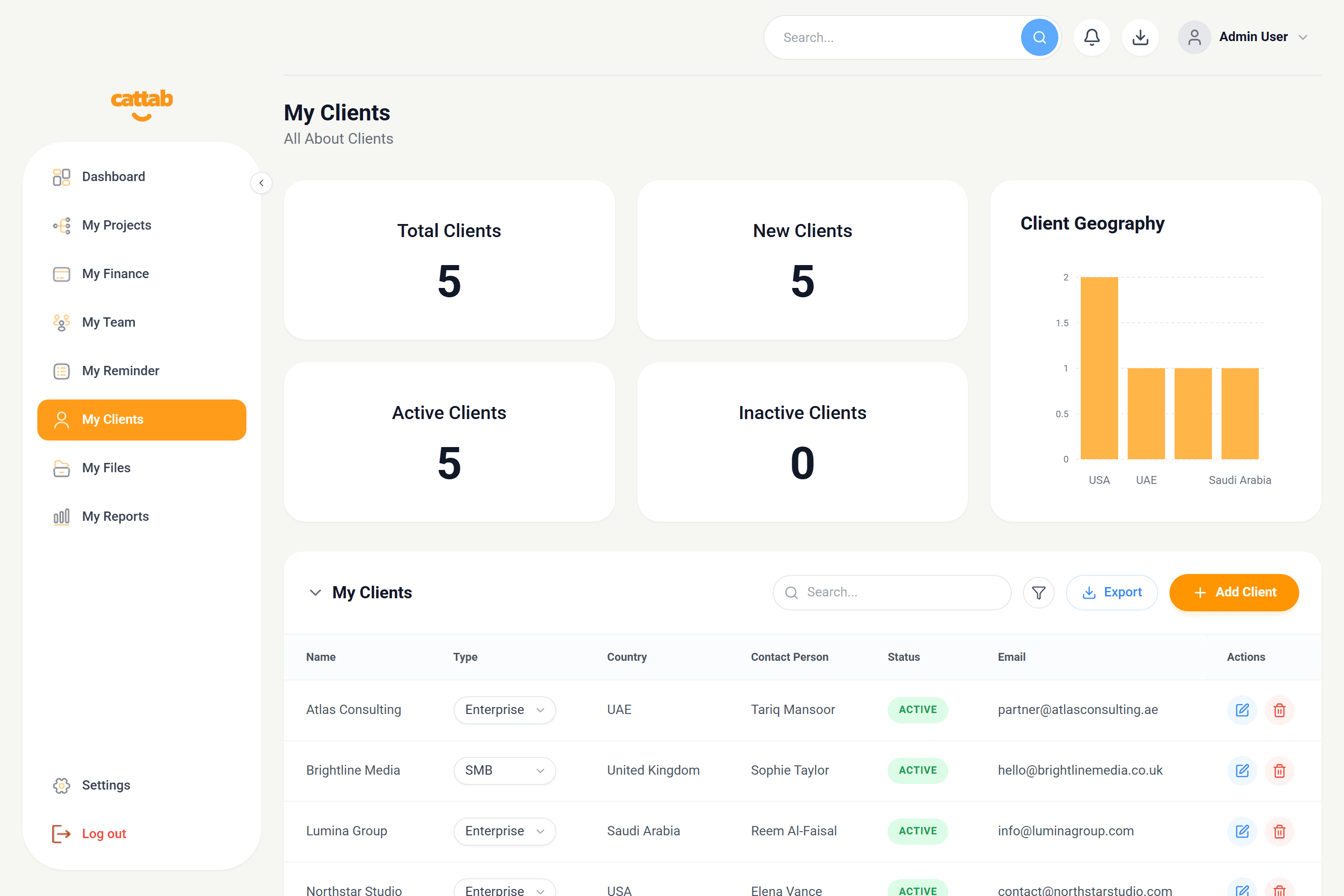
How to Create a New Client
Follow these steps to open the Create Client modal and enter the required account details:
Separate Operations and Billing Emails
CATTAB allows you to define distinct primary and finance email addresses. When you generate an invoice, the system routes statements directly to the accounting contact without spamming project managers.
Client default rates automatically populate into new projects, but you can override them on individual deliverables when needed.
Related Guides
Was this guide helpful?
Have feedback or need assistance with your setup? We're here to help.
Run your client work from one clear workspace.
Bring projects, client records, team capacity, and finances into a unified operating platform built for fast-moving service businesses.