
Finance•
4 min read
•Updated October 2026
Creating and Managing Invoices
Turn completed project deliverables into professional client invoices with automatic rate calculations, currency formatting, and tax summaries.
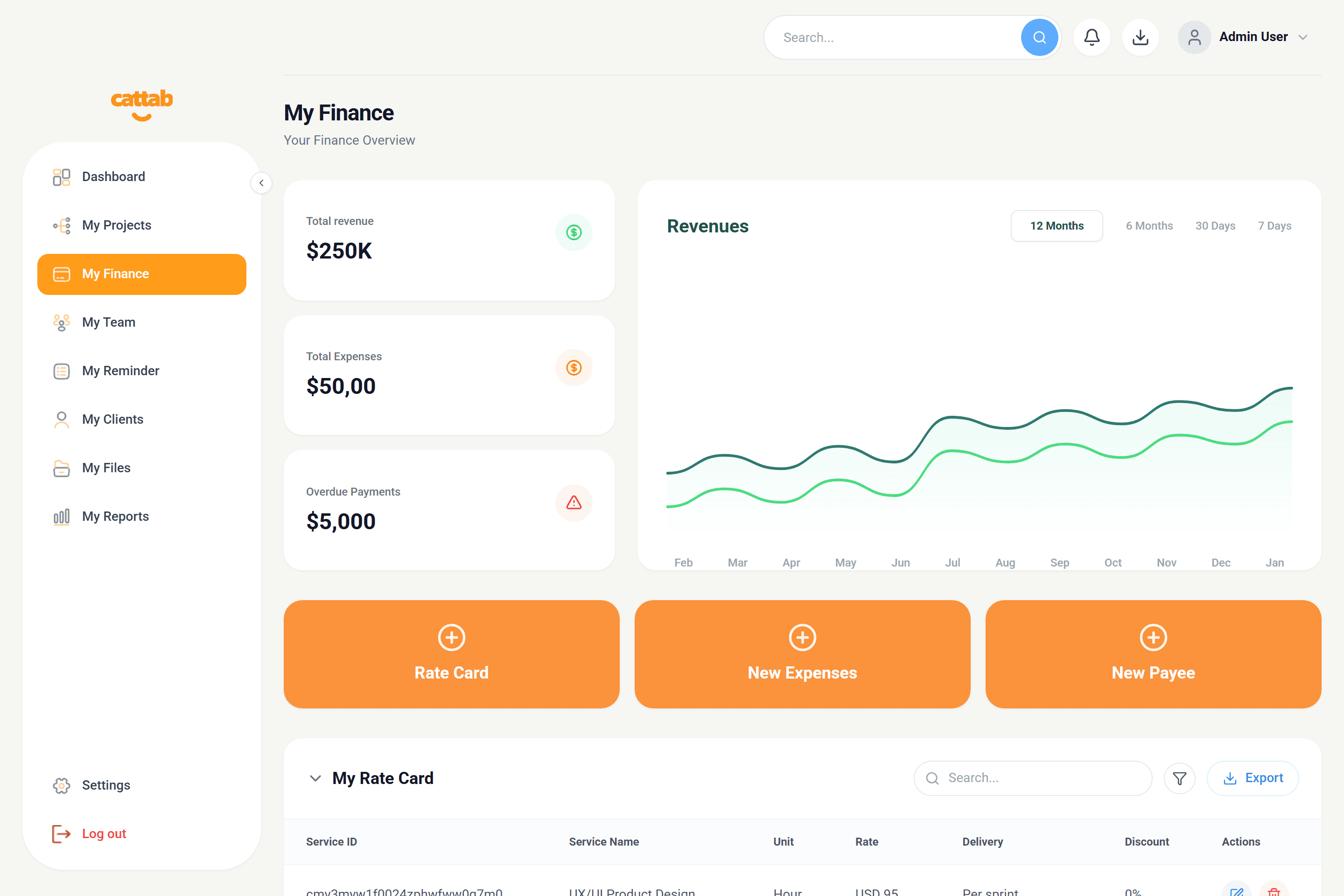
My Finance dashboard showing rate cards, itemized invoices, expenses, and payee directories.
How Invoicing Works in CATTAB
In My Finance, navigate to the Invoices section to create and review client statements:
1Select the target client from your directory.
2Attach completed project deliverables to pull item names, unit counts, and agreed rates.
3Review deliverable line items (e.g. Word count x rate per word).
4Set invoice issue date and payment terms (e.g. Net 15, Net 30).
5Apply applicable discounts or adjust VAT/sales tax percentage.
6Select invoice output currency (USD, EUR, GBP, JOD, SAR, AED).
Tracking Payment Statuses
CATTAB tracks invoices through four clear states: Draft, Sent, Paid, and Overdue. When client remittances clear your bank account, mark the invoice as Paid to immediately update your revenue dashboard.
Pro Tip
Customize your invoice logo, payment terms, and closing message under Settings > Template.
Related Guides
Was this guide helpful?
Have feedback or need assistance with your setup? We're here to help.
Get Started with CATTAB
Run your client work from one clear workspace.
Bring projects, client records, team capacity, and finances into a unified operating platform built for fast-moving service businesses.